
With Stock Lookup you look up where an item is in stock. Nothing is booked.
Step by step
1. Item (screen Stock Lookup - Item)
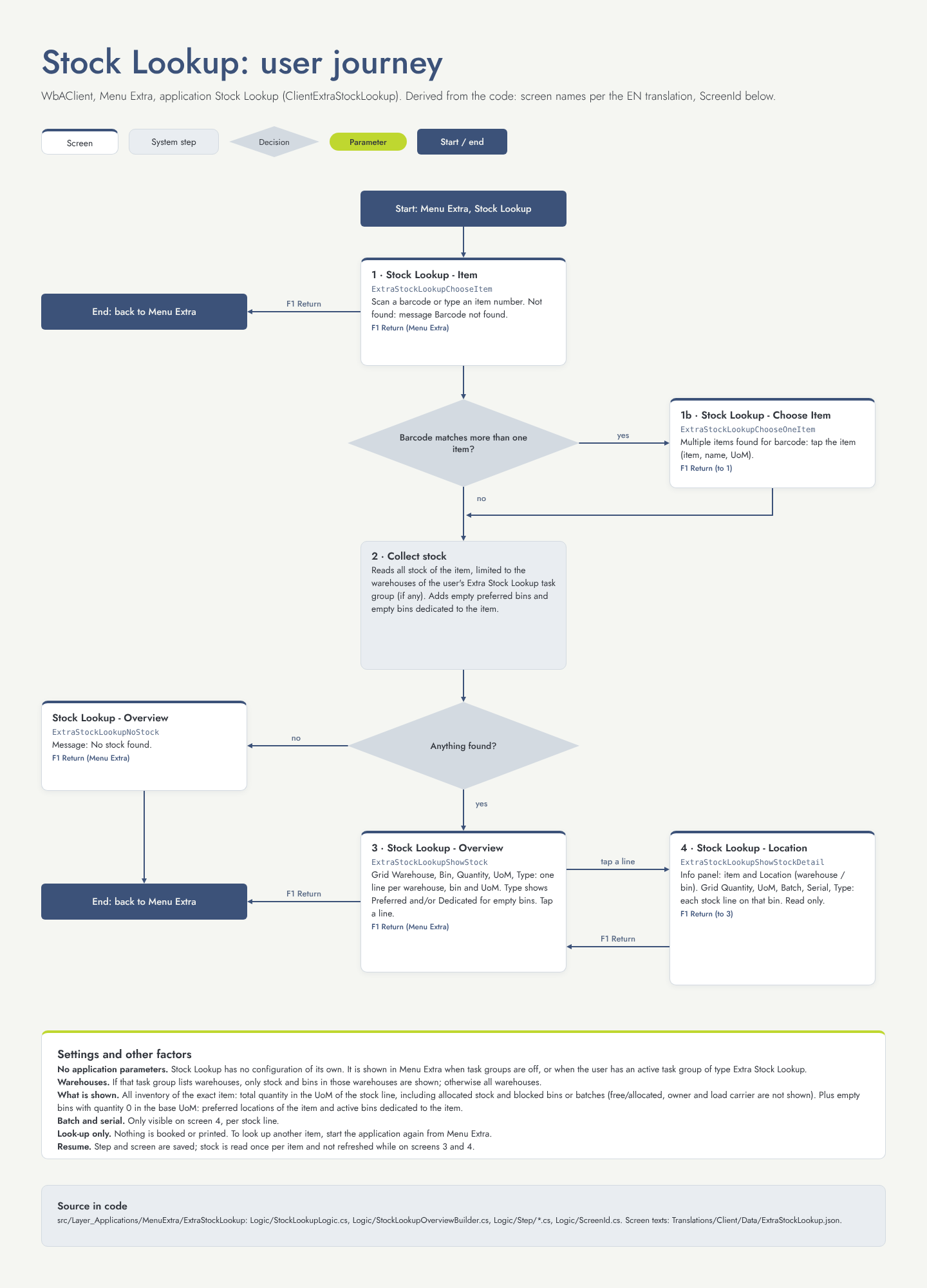
Scan the item barcode or type the item number. When a barcode matches several items, you choose the right one (Stock Lookup - Choose Item). F1 Return takes you back to the Menu Extra.
2. Overview (screen Stock Lookup - Overview)
You see one line per warehouse, location and unit, with the columns Warehouse, Bin, Quantity, UoM and Type. Empty preferred and dedicated locations for the item are also shown, with quantity 0 and the type Preferred, Dedicated or Preferred/Dedicated. Tap a line to see its details. When the item has no stock, you get the message No stock found.
F1 Return takes you back to the Menu Extra.
3. Location details (screen Stock Lookup - Location)
You see the stock on that location per line, with quantity, unit, batch, serial number and type. F1 Return takes you back to step 2.
Flow diagram
Settings that change this flow
This application has no settings of its own.
Other things that change the flow
-
Task groups: when your Stock Lookup task group lists warehouses, you only see stock in those warehouses. Otherwise you see all warehouses.
-
Quantity: the quantity shown is the total stock, including stock that is reserved or blocked.
-
To look up another item, start the application again from the Menu Extra.