
With Put Away you move stock from a source location, for example a receiving location, to its storage location. A task is a source location that holds stock to put away.
Step by step
1. Choose Task (screen Put Away - Choose Task)
The list shows the source locations with stock to put away. Tap a location or scan its barcode. When Put Away is not enabled, the Put Away - Not Enabled screen appears and Continue takes you back to the main menu.
2. Location overview (screen Put Away - Bin - Overview)
The stock on the source location is shown per item, unit, license plate and owner. Scan an item barcode or tap a line. When a barcode matches several lines, you choose the right line (Put Away - Choose Line). When the location is empty, you go back to step 1.
3. Confirm Item (screen Put Away - Confirm Item)
Scan the item barcode. This screen appears when the item has a barcode and you tapped the line instead of scanning it. F2 Skip skips the confirmation, unless confirmation is mandatory.
4. Target location (screen Put Away - Bin)
The application suggests a location. Scan the location where you put the goods; it must exist, be active and be in the same warehouse.
-
F2 Next: show the next suggested location.
-
F1 Return: back to step 2, or close the put-away when you have already put something away.
5. Quantity, batch or serial number
-
Put Away - Quantity: enter the quantity, up to the quantity available on the source location.
-
Put Away - Batches: choose a batch and then enter the quantity. F2 All puts all batches away at once.
-
Put Away - Serials: scan or tap a serial number; each serial number is one piece. F2 All puts all serial numbers away at once.
6. Save
The stock is moved to the target location. When a report is set up, you can print a label. For batch and serial items you continue with step 5 until the line is empty. For other items the put-away is closed straight away.
7. Close and finish (screen Put Away - Finished)
The put-away document is closed and can be printed. Ok takes you back to step 2 for the same source location.
Flow diagram
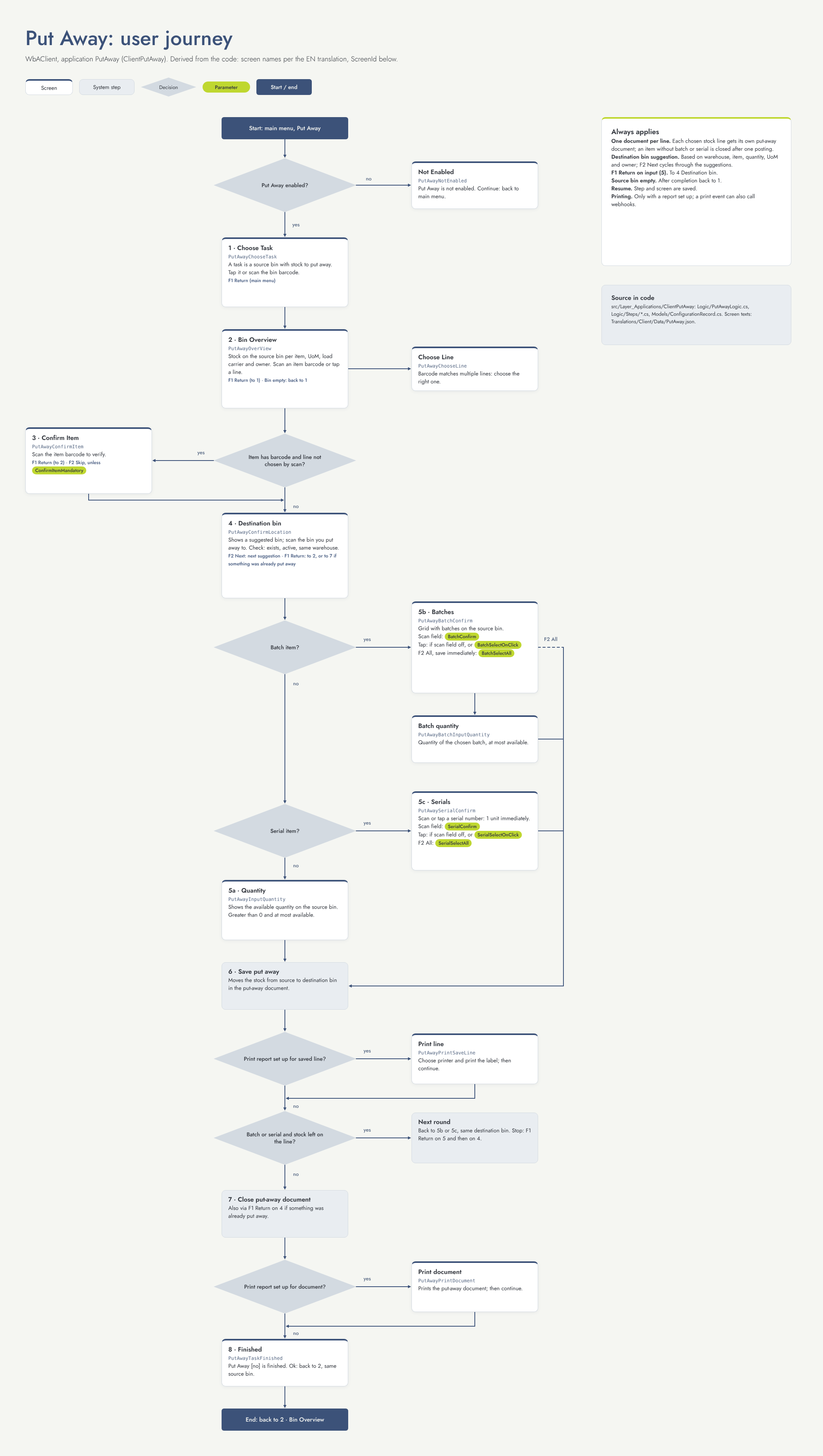
Settings that change this flow
|
Setting |
Default |
Effect |
Step |
|---|---|---|---|
|
ConfirmItemMandatory |
Off |
When on, the item confirmation cannot be skipped. |
3 |
|
BatchConfirm |
On |
Show a scan field for the batch. When off, tap the batch in the list. |
5 |
|
BatchSelectOnClick |
Off |
Also allow tapping a batch while the scan field is shown. |
5 |
|
BatchSelectAll |
Off |
Show F2 All to put all batches away at once. |
5 |
|
SerialConfirm |
On |
Show a scan field for the serial number. When off, tap it in the list. |
5 |
|
SerialSelectOnClick |
Off |
Also allow tapping a serial number while the scan field is shown. |
5 |
|
SerialSelectAll |
Off |
Show F2 All to put all serial numbers away at once. |
5 |
Other things that change the flow
-
Put Away enabled: when it is not enabled, the application does not start.
-
Item settings: barcodes, batch and serial.
-
Location suggestions: based on warehouse, item, quantity, unit and owner.
-
Print reports: print screens only appear when a report is set up.