
With Replenishment you fill up pick locations. A task covers one item: first you get the stock from the source locations (Get), then you put it away on the locations that need it (Put).
Step by step
1. Choose Task (screen Replenishment - Choose Task)
The tasks are sorted with urgent tasks first, then by date. Tap a task or scan its number. When someone else is already working on the task, you can team up.
-
F2 Manual (Replenishment - Items To Replenish): choose an item with a shortage to create replenishment tasks. You return to the task list.
-
When all stock has already been picked and is waiting to be put away, you go straight to step 6.
A. Get
2. Get - Locations (screen Replenishment - Get - Locations)
The source locations are shown in pick sequence. Tap a location or scan its barcode.
-
F2 Order: work through all source locations in sequence (sort mode).
-
F3 Put: put away the stock you have already picked (step 6).
-
F4 Cancel: cancel the task, as long as nothing has been picked yet.
3. Get - Confirm Location (screen Replenishment - Get - Confirm Location)
Scan the location that is shown. When you scanned the location in step 2, this step is skipped.
4. Get - Confirm Item (screen Replenishment - Get - Confirm Item)
Scan the item barcode. This screen appears when the item has a barcode. F2 Skip skips the confirmation, unless confirmation is mandatory.
5. Get - Quantity, batch or serial number
-
Replenishment - Get - Quantity: pick the quantity shown.
-
Replenishment - Get - Batches: choose a batch, then enter the batch quantity.
-
Replenishment - Get - Serials: scan a serial number; each scan is one piece.
After saving, the application decides whether you put away now or keep picking. By default you put away after each pick; when consolidation is on, you first pick everything. Serial items are always picked completely first.
B. Put
6. Put - Locations (screen Replenishment - Put - Locations)
The application suggests a target location. Scan the location.
-
F2 Next: show the next suggested location.
-
F3 Alternative: choose an alternative location from a list.
-
When you scan a location that does not belong to the task, the application asks you to confirm it.
-
F1 Return: back to step 2, or to the task list when everything is picked. Picked stock stays waiting; when you open the task again, you continue with step 6.
7. Put - Quantity, batch or serial number
-
Replenishment - Put - Quantity: the quantity the location still needs, up to the quantity picked.
-
Replenishment - Put - Batches: choose a batch, then enter the quantity. F2 All puts all batches on the location at once.
-
Replenishment - Put - Serials: scan a serial number; each scan is one piece. F2 All puts all serial numbers at once.
8. Finished (screen Replenishment - Finished)
When everything is put away, the task is finished and can be printed. Ok takes you back to step 1. While there is still stock to get or put, you continue with step 2 or step 6.
Flow diagram
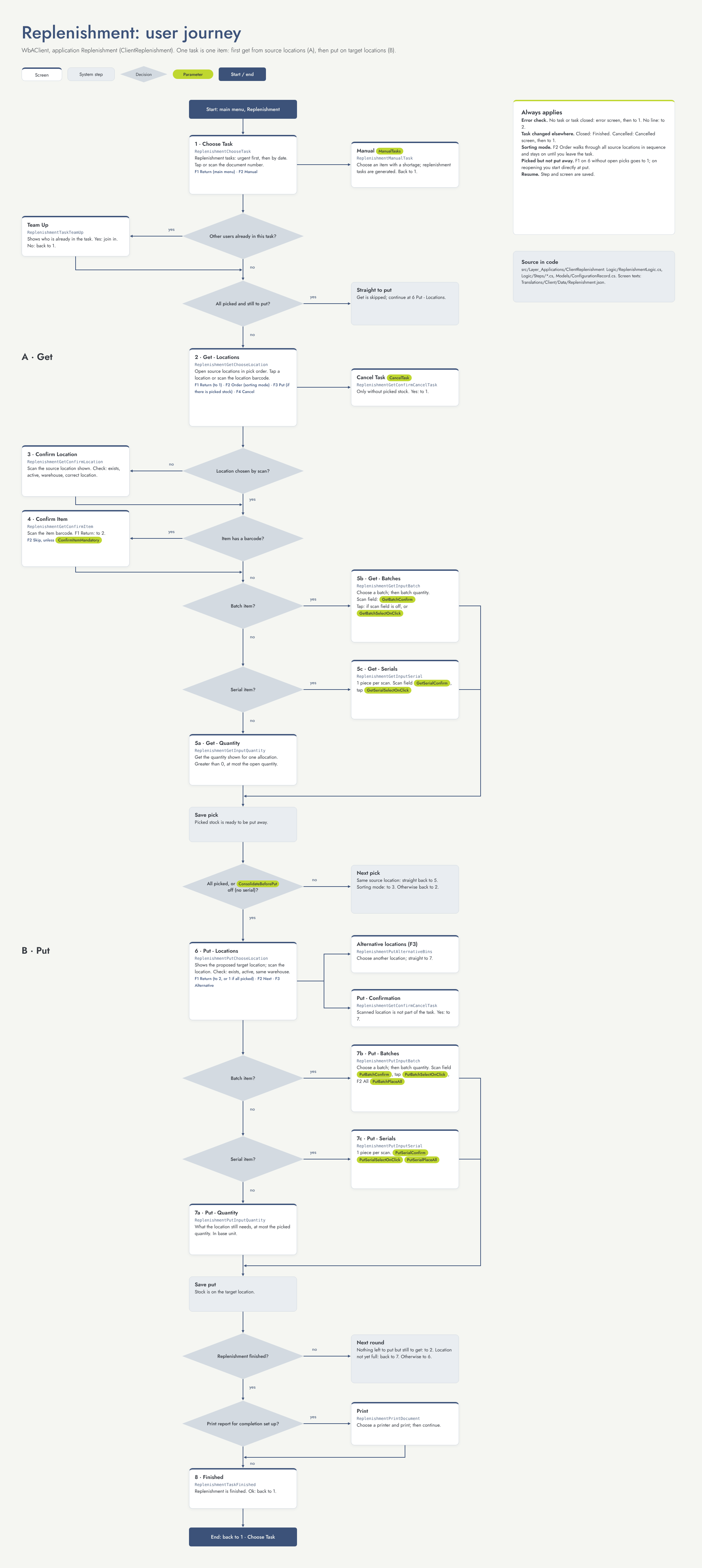
Settings that change this flow
|
Setting |
Default |
Effect |
Step |
|---|---|---|---|
|
ManualTasks |
Off |
Show F2 Manual on the task list. |
1 |
|
CancelTask |
Off |
Show F4 Cancel on Get - Locations, as long as nothing has been picked. |
2 |
|
ConfirmItemMandatory |
Off |
When on, the item confirmation cannot be skipped. |
4 |
|
ConsolidateBeforePut |
Off |
Off: put away after each pick (not for serial items). On: first pick everything, then put away. |
5 |
|
GetBatchConfirm |
On |
Get: show a scan field for the batch. When off, tap the batch. |
5 |
|
GetBatchSelectOnClick |
Off |
Get: also allow tapping a batch while the scan field is shown. |
5 |
|
GetSerialConfirm |
On |
Get: show a scan field for the serial number. When off, tap it. |
5 |
|
GetSerialSelectOnClick |
Off |
Get: also allow tapping a serial number while the scan field is shown. |
5 |
|
PutBatchConfirm |
On |
Put: show a scan field for the batch. When off, tap the batch. |
7 |
|
PutBatchSelectOnClick |
Off |
Put: also allow tapping a batch while the scan field is shown. |
7 |
|
PutBatchPlaceAll |
Off |
Show F2 All for batches when there is exactly one open target location. |
7 |
|
PutSerialConfirm |
On |
Put: show a scan field for the serial number. When off, tap it. |
7 |
|
PutSerialSelectOnClick |
Off |
Put: also allow tapping a serial number while the scan field is shown. |
7 |
|
PutSerialPlaceAll |
Off |
Show F2 All for serial numbers when there is exactly one open target location. |
7 |
Other things that change the flow
-
Item settings: barcodes, batch, serial and units.
-
Target locations of the task: their priority determines the suggestion; alternative locations enable F3 Alternative.
-
Print report: the print screen at the end only appears when a report is set up.