
After you log in, the Main Menu is your starting point. From here you open the applications and the Menu Extra.
Step by step
1. Log in
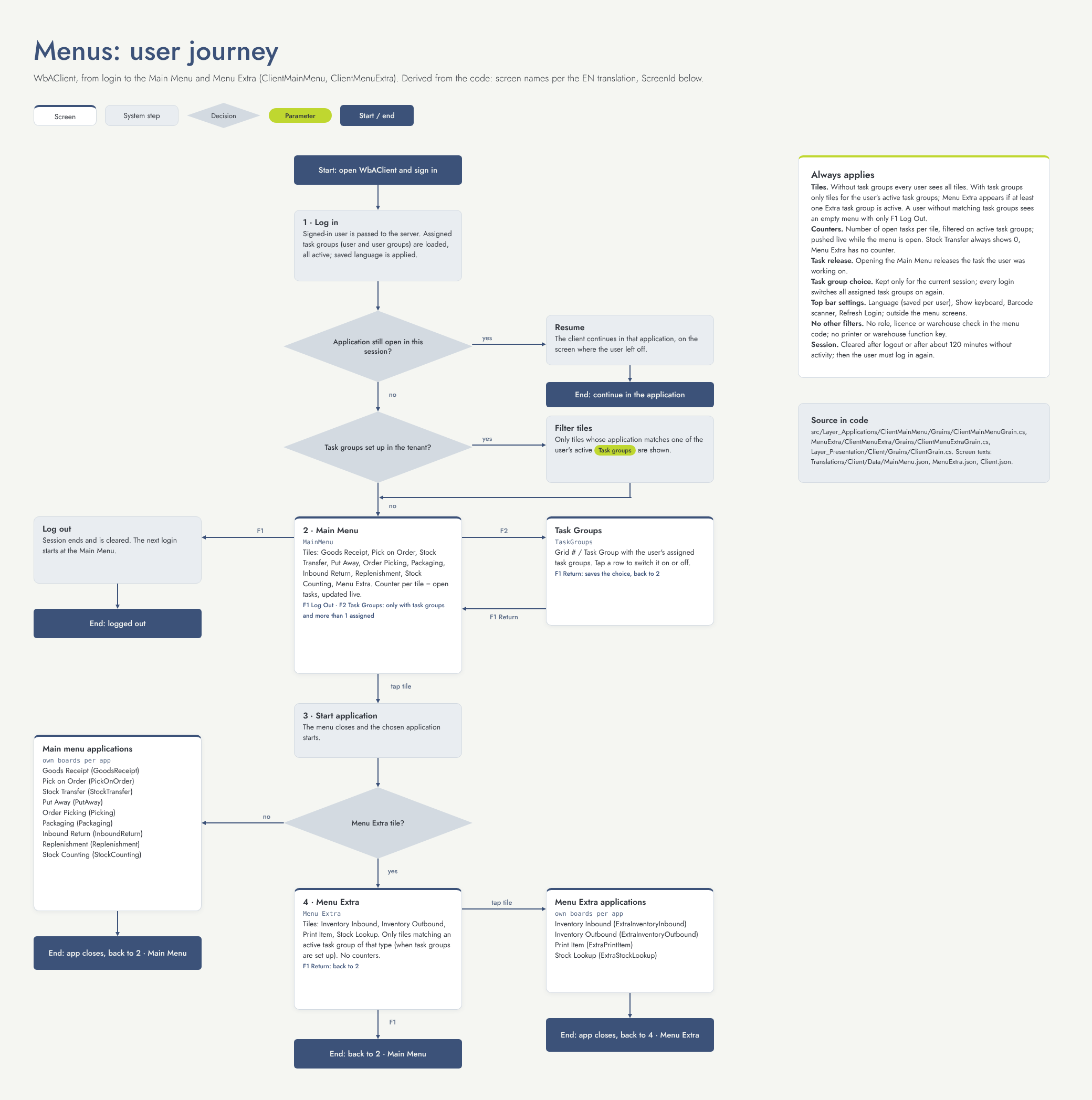
After you log in, the client checks whether you still had an application open. If so, you continue in that application on the screen where you left off. Otherwise the Main Menu opens.
2. Main Menu (screen Main Menu)
The menu shows a tile for each application, with a counter of open tasks. The counters update while the menu is open. The tiles are, in this order:
-
Goods Receipt
-
Pick on Order
-
Stock Transfer
-
Put Away
-
Order Picking
-
Packaging
-
Inbound Return
-
Replenishment
-
Stock Counting
-
Menu Extra
Tap a tile to open the application. When you open the menu, any task you were working on is released, so a colleague can pick it up.
-
F1 Log Out: log out. The next time you log in, you start at the Main Menu.
-
F2 Task Groups: choose which of your task groups are active (see step 3). This key only appears when you have more than one task group.
3. Task Groups (screen Task Groups)
The list shows your task groups. Tap a row to switch the group on or off. F1 Return saves your choice and redraws the menu. Your choice only applies to this session: at the next login all your task groups are active again.
4. Menu Extra (screen Menu Extra)
The Menu Extra holds the extra applications:
-
Inventory Inbound: book stock into a location without a document.
-
Inventory Outbound: book stock out of a location without a document.
-
Print Item: print item labels.
-
Stock Lookup: look up where an item is in stock.
See User guide - Menu Extra for details. F1 Return takes you back to the Main Menu.
5. Returning to the menu
When you leave an application from the Main Menu, you return to the Main Menu. When you leave an extra application, you return to the Menu Extra.
Flow diagram
What decides which tiles you see
-
Task groups: when task groups are set up in the Portal, you only see a tile when you have an active task group of that type. The task group can be assigned to you directly or to a user group you belong to. When no task groups are set up at all, everyone sees all tiles.
-
Menu Extra: shown when you have an active task group for at least one of the four extra applications. Each extra application has its own task group type.
-
No matching task groups: the menu is empty, apart from F1 Log Out. Ask your key user to assign a task group.
-
Language: all menu texts follow your language setting.
Good to know
-
After about two hours without activity your session ends and you need to log in again.
-
An application that you leave open (for example because the device switched off) is resumed at your next login.