
With Print Item you print item labels for any item, with batch, expiration date, serial number and quantity. No stock is booked.
Step by step
1. Item (screen Print Item - Item)
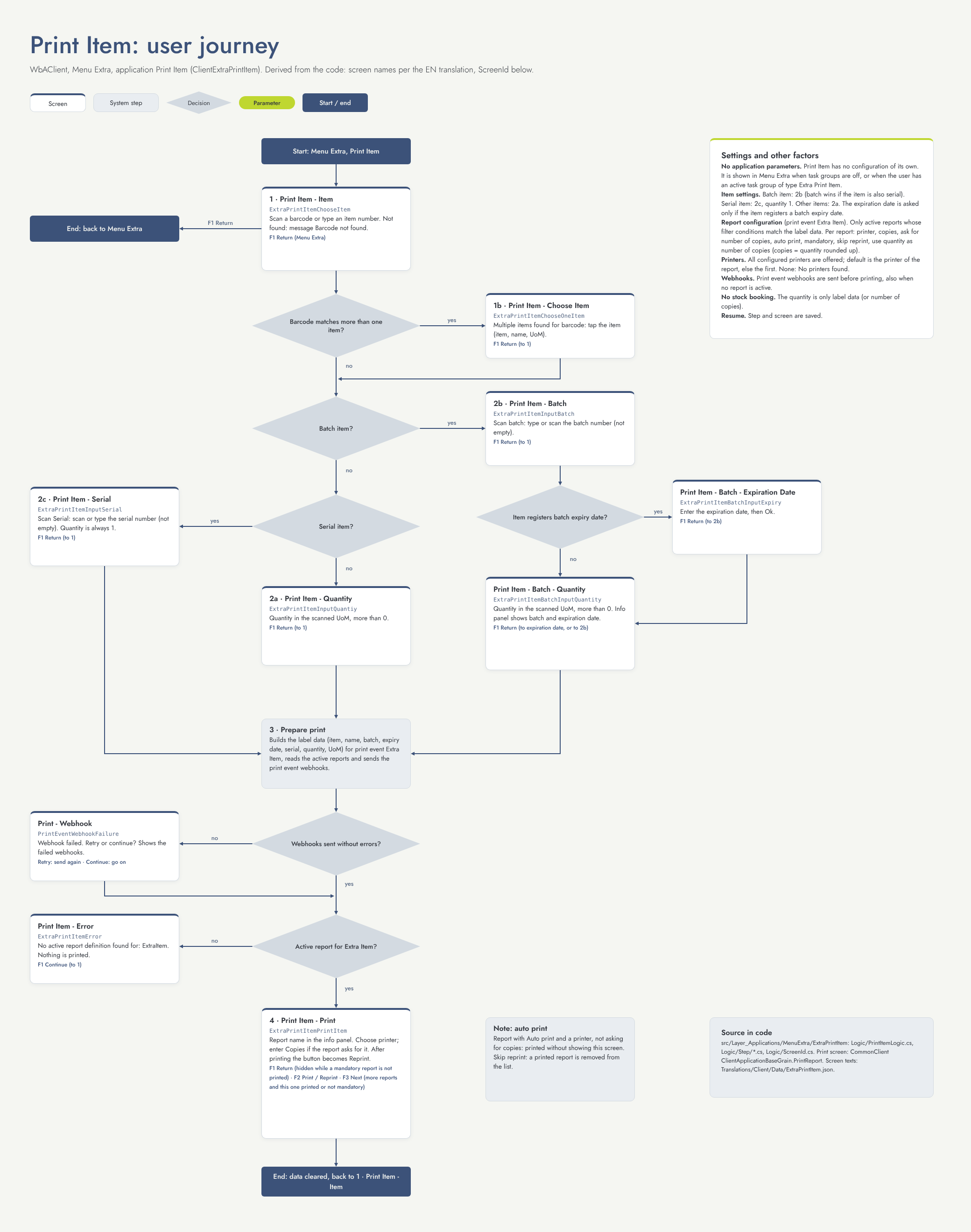
Scan the item barcode or type the item number. When a barcode matches several items, you choose the right one (Print Item - Choose Item). F1 Return takes you back to the Menu Extra.
2. Quantity, batch or serial number
-
Print Item - Quantity: enter the quantity in the scanned unit.
-
Print Item - Batch: scan the batch number. When the item registers an expiration date, enter it next (Print Item - Batch - Expiration Date). Then enter the quantity (Print Item - Batch - Quantity).
-
Print Item - Serial: scan the serial number. The quantity is 1.
F1 Return takes you back one screen, or to step 1.
3. Prepare the label
The application looks for the active label reports for the print event Extra Item that match the item. When there is no active report, you get the message No active report definition found for: ExtraItem; Continue takes you back to step 1.
4. Print (screen Print Item - Print)
Choose the printer and, when the report asks for it, the number of copies.
-
F2 Print: print the label. After printing the key reads Reprint.
-
F3 Next: go to the next report, when there is more than one.
-
F1 Return: finish. This key is hidden while a mandatory report has not been printed yet.
A report that is set to print automatically is printed without showing this screen.
5. Next item
When all reports are done, you go back to step 1 for the next item.
Flow diagram
Settings that change this flow
This application has no settings of its own. The flow is driven by the item and the report setup.
Other things that change the flow
-
Item settings: batch, expiration date and serial number decide which screens you get in step 2.
-
Report setup for the print event Extra Item: active or not, filter conditions, default printer, number of copies (fixed, asked, or equal to the quantity), automatic printing and mandatory printing.
-
Printers: all set-up printers can be chosen; the report's printer is suggested.
-
Task groups: the application is only shown when you have an active Print Item task group (when task groups are set up).