
With Inventory Inbound you book stock into a location without a source document, for example stock that was found. You always give a reason. Each booking creates its own inventory inbound document with one line.
At least one inventory inbound reason must be set up. When there are none, you get the message No inventory inbound reasons are defined and the application does not start.
Step by step
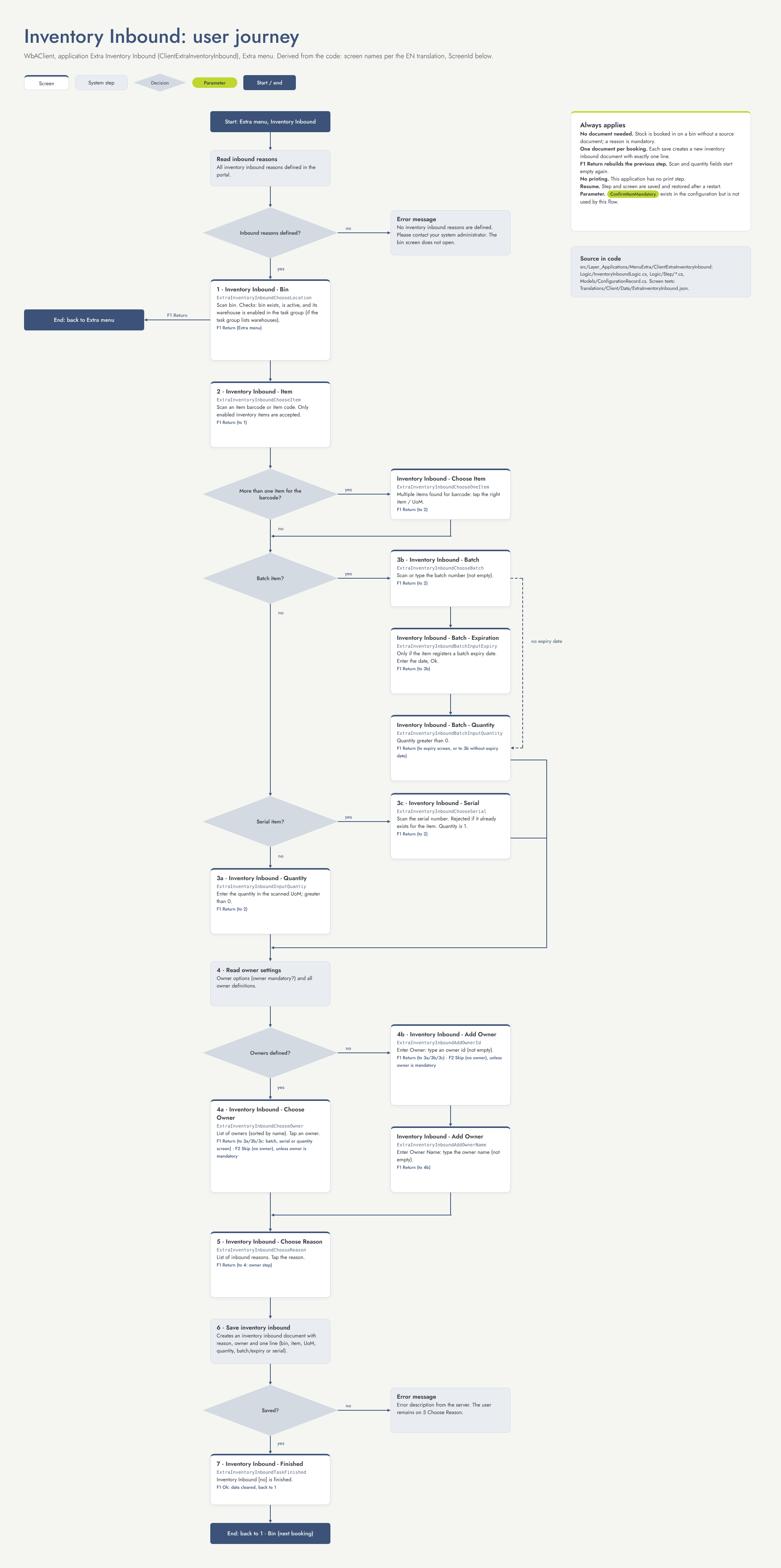
1. Location (screen Inventory Inbound - Bin)
Scan the location where you book the stock in. The location must exist and be active, and its warehouse must be allowed by your task group. F1 Return takes you back to the Menu Extra.
2. Item (screen Inventory Inbound - Item)
Scan the item barcode or type the item number. Only active stock items are accepted. When a barcode matches several items or units, you choose the right one (Inventory Inbound - Choose Item). F1 Return takes you back to step 1.
3. Quantity, batch or serial number
-
Inventory Inbound - Quantity: enter the quantity in the scanned unit.
-
Inventory Inbound - Batch: scan the batch number. When the item registers an expiration date, enter it next (Inventory Inbound - Batch - Expiration). Then enter the quantity (Inventory Inbound - Batch - Quantity).
-
Inventory Inbound - Serial: scan the serial number. It must not exist yet for this item. The quantity is 1.
F1 Return takes you back one screen, or to step 2.
4. Owner (screen Inventory Inbound - Choose Owner)
Choose the owner of the stock from the list. When no owners are set up, you type the owner id and then the owner name (Inventory Inbound - Add Owner). F2 Skip continues without an owner; it is only shown when an owner is not mandatory. F1 Return takes you back to step 3; for batch items you start again at the batch number.
5. Reason (screen Inventory Inbound - Choose Reason)
Tap the reason for the booking. F1 Return takes you back to step 4.
6. Save and finish (screen Inventory Inbound - Finished)
The inventory inbound document is created. The screen shows its number. Ok takes you back to step 1 for the next booking.
Flow diagram
Settings that change this flow
This application has no settings that change the flow. The setting ConfirmItemMandatory exists in its configuration, but it is not used.
Other things that change the flow
-
Inbound reasons: at least one must be set up; all are shown in step 5.
-
Task groups: limit the warehouses where you can book stock in.
-
Item settings: batch, expiration date and serial number decide which screens you get in step 3.
-
Owner settings: whether an owner is mandatory, and whether owners are set up (list or typing).
-
There is no printing in this application.