
With Stock Counting you count the stock per location on a counting list. Every quantity you enter is added to what was already counted. Counting lists come from the back office, or you create one yourself on the handheld (manual count).
Step by step
1. Choose Task (screen Stock Counting - Choose Task)
The counting lists are sorted by date and sequence; a recount is marked as such. Tap a list or scan its number. When someone else is already working on the list, you can team up.
-
F2 Manual: start a manual count. You go to step 3; the first location you scan creates a new list.
-
When all locations of a back-office list are already counted, the list is finished straight away (step 7).
2. Choose Location (screen Stock Counting - Choose Location)
The locations of the list are shown with their status: open, busy or counted. Counted locations are at the bottom and cannot be chosen. Tap a location or scan its barcode.
-
F2 Finished: finish the counting list (after confirmation).
-
F3 Add Bin: add a location (manual lists only).
3. Location (screen Stock Counting - Location)
Scan a location to add to the list. It must exist, be active, belong to a warehouse of your task groups and not be on the list yet.
4. Item
-
Stock Counting - Choose Item: the expected items on the location are shown with the quantity counted so far. Tap an item or scan its barcode.
-
Stock Counting - Item: on a location without expected items (always the case on a manual list), scan any active stock item.
-
When a barcode matches several items, you choose the right one.
5. Count
-
Stock Counting - Quantity: enter the quantity you counted. It is added to the quantity already counted and the screen stays open, so you can keep counting. F2 Change UoM switches to another unit.
-
Stock Counting - Batch: scan a batch (only expected batches, or any batch on a location without expected batches), then enter the quantity.
-
Stock Counting - Serial: scan a serial number; each scan is one piece.
-
F1 Return takes you back to step 4.
6. Location done (screen Stock Counting Location Done)
When you press F1 Return on step 4, the application asks if counting this location is done. No takes you back to step 4. Yes closes the location: on a back-office list you go back to step 2, on a manual list to step 3.
7. Finished (screen Stock Counting List - Finished)
The counting list is finished, automatically when all locations are counted or via F2 Finished on step 2. Confirm to go back to step 1.
There is no screen to correct a count. There is no printing in this application.
Flow diagram
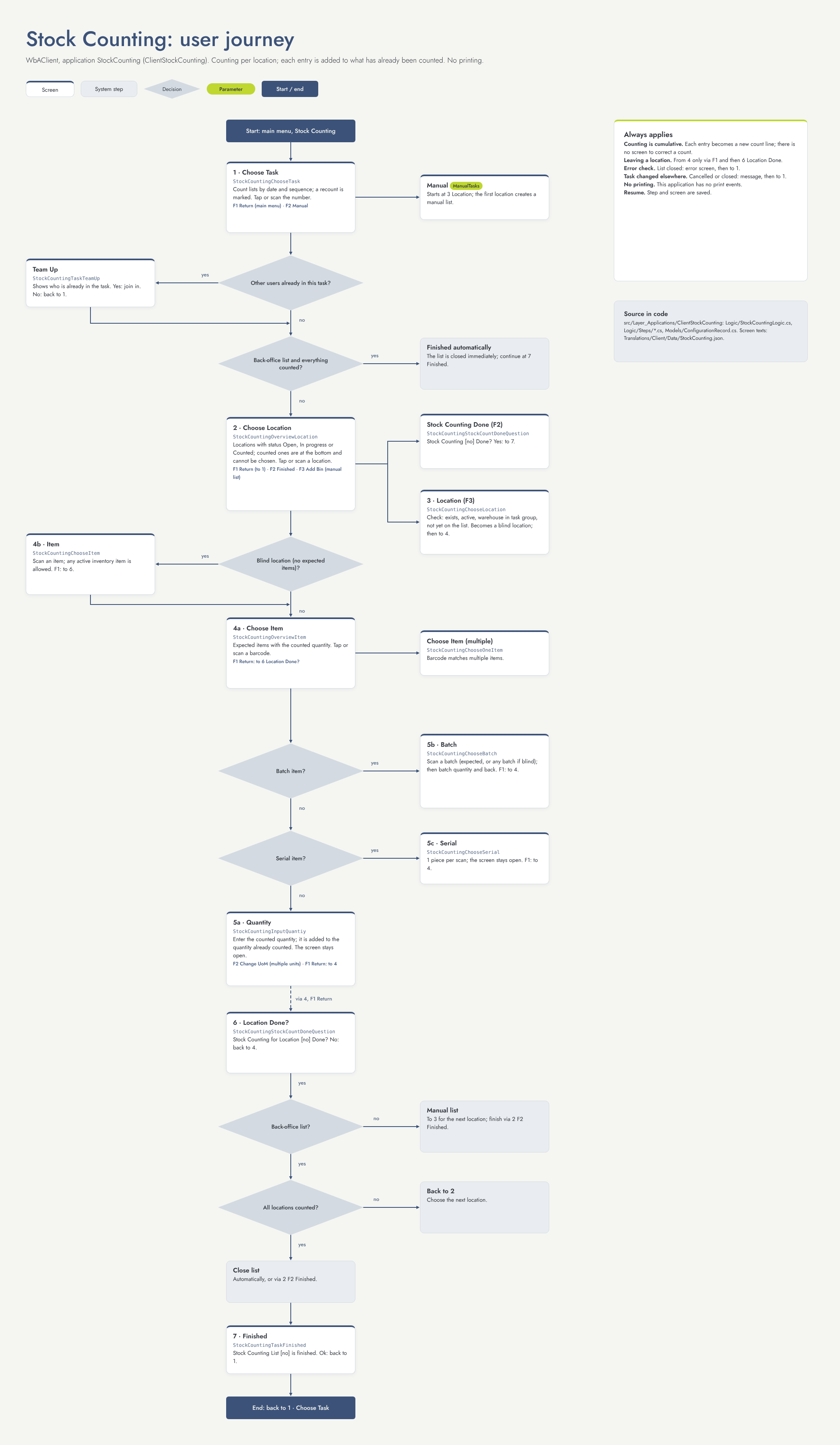
Settings that change this flow
|
Setting |
Default |
Effect |
Step |
|---|---|---|---|
|
ManualTasks |
Off |
Show F2 Manual on the task list, to start your own count by scanning locations. |
1, 3 |
Other things that change the flow
-
Type of list: back-office lists finish automatically when everything is counted; manual lists have F3 Add Bin and return to step 3 after each location.
-
Locations without expected items: you scan items freely (step 4).
-
Expected batches and serial numbers: when present, only those are accepted.
-
Item settings: batch, serial and number of units.
-
Task groups: which lists you see and in which warehouses you may add a location.