
A valid license is required for the installation of RetailPro. Ensure that it is correctly linked in the B1ProSuite Software Platform before the installation of RetailPro is started.
When installing an update containing database changes for the SAP Business One Database, make sure to restart all connections to the Database. This includes SAP Business One Clients, but also DI-API and Service Layer sessions.
|
Step |
Remarks |
|
|---|---|---|
|
1 |
Start the B1ProSuite Software Platform application if it has not yet started and login if needed. |
|
|
2 |
Navigate to Packages > Applications . |
|
|
3 |
Click (in lower right corner) on “New”. 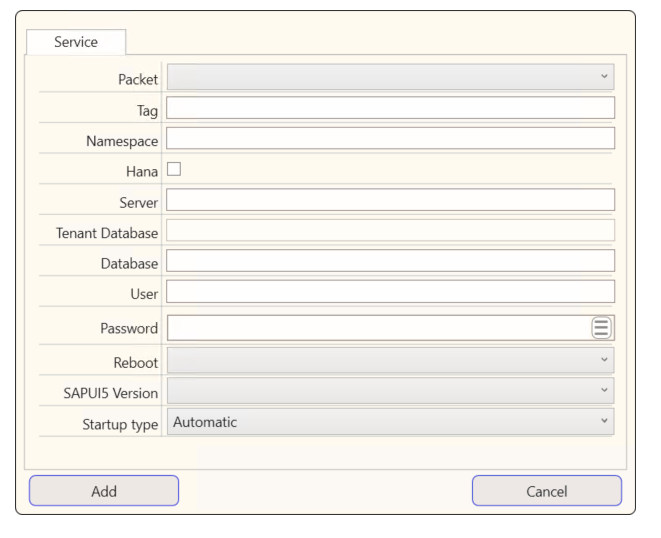
|
|
|
4 |
In Service tab, select the packet "RetailPro Server". 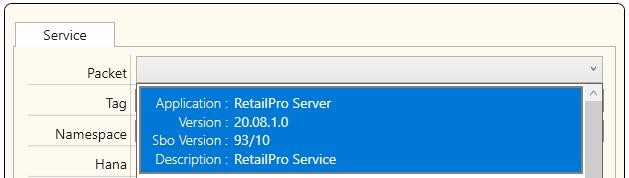
|
|
|
5 |
Enter a desired "Tag" to categorize the different applications (for example TEST or PRODUCTION). |
|
|
6 |
"Namespace" field is not mandatory, but it is useful for filtering the applications within the B1 ProSuite Software Platform. This can also be adjusted later. |
|
|
7 |
Select the "Hana" field if it is a link with HANA databases. |
|
|
8 |
Enter the database server address behind "Server". |
Default for HANA: <server address>:30015 or <server address>:30013 |
|
9 |
When connecting to HANA 2.0 environment enter the “Tenant Database”. |
|
|
10 |
Enter the name of the SAP Business One database to which the service should be linked in "Database" field. |
|
|
11 |
Enter the Database server login data in "User" and "Password" fields (not SAP Business One credentials). |
|
|
12 |
If desired, select a time when the Application should be restarted automatically. If this is set up, make sure that this is outside of business hours. |
|
|
13 |
Select "SAPUI5 Version" 1.73.x as the specific version is to be used. |
If left blank, the highest available version is used. |
|
14 |
Select the “Startup type” to indicate whether the application should be started automatically when the B1ProSuite Software Platform service is started. |
|
|
15 |
In IP tab, select which IP port this "service" should use. 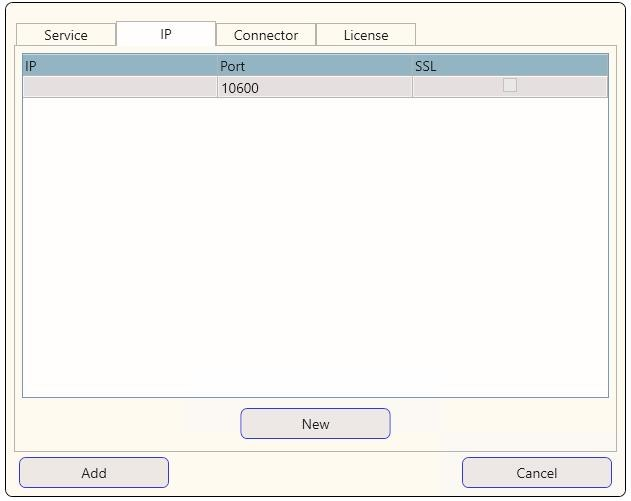
|
Make sure to create firewall rules to accept incoming traffic to access this port and the configured webserver port. |
|
16 |
In Connector tab, select via which Connector (DI-API or Service Layer) the connection to SAP Business One should be made. The Service Layer is recommended. |
Make sure to use the corresponding version of SAP Business One (9.3 or 10.0). |
|
17 |
Under "Database Type", choose the corresponding option on which SAP Business One is installed. |
|
|
18 |
Enter "SAP User" and "Password" for SAP Business One with which the server can check and make the connection. |
Use a specifically assigned user for this. It is advised not to use an account that is in use by any SAP Business One user or the manager account. Incorrect login attempts by users might cause the account be blocked and will stop functions of RetailPro. |
|
19 |
In "Language" field, select the language to be emulated by the Connector. Only English is possible for Service Layer connector. |
|
|
20 |
Enter (optional and only active when using DI-API connector) the address of the SAP Business One license server in "License Server" field. |
Default value for SAP Business One is <server name>:30000 |
|
21 |
Enter (optional, but advised and only active when using DI-API connector) the address of the SAP Business One System Landscape Design (SLD) in “SLD Server” field. |
Default value for SAP Business One is https://<server name>:40000 |
|
22 |
Enter (only active when using Service Layer) behind "Service Layer" the address of the Service Layer. |
Default: https://<server name>:50000/b1s/v1/ |
|
23 |
Enter DI-API Port number. |
Default port is 30013. This port is only required for SAP HANA 2.0 environments |
|
24 |
Click "Test" to check the entered data. Press "Ok" to close the message. |
|
|
25 |
In License tab. Assign an available license. |
Refer to the B1ProSuite Software Platform installation manual for instructions on obtaining (temporary) licenses. |
|
26 |
Click “Add” to start installation process. |
|
After successful installing the new RetailPro Server instance, please continue to Start and Configure RetailPro Server .