
Installing RetailPro
|
Step |
Remarks |
|
|---|---|---|
|
1 |
Make sure the installation of B1 ProSuite Software Platform is completed and is running correctly. |
|
|
2 |
Extract the file “RetailPro xx.xx.x.x.zip” to a desired location. |
|
|
3 |
Start the B1 ProSuite Software Platform application if it has not yet started and login if needed. |
|
|
4 |
Navigate to “Available Packages”. |
|
|
5 |
Click “Import”. |
|
|
6 |
Select the different RetailPro Packages as further explained the the following chapter. |
Do not extract these files! See subchapters below for more details about installing components |
|
7 |
Click “Import”. |
|
Import RetailPro Server and Connectors
|
Step |
Remarks |
|
|---|---|---|
|
1 |
Select the file “RetailProServer_ImportPackage_XXXXXX.zip” and click Import. The location of the file depends on where it is stored. |
The package contains both the Server Components and the SAP Business One Connectors |
|
2 |
Wait for the process to indicate that the import is complete. 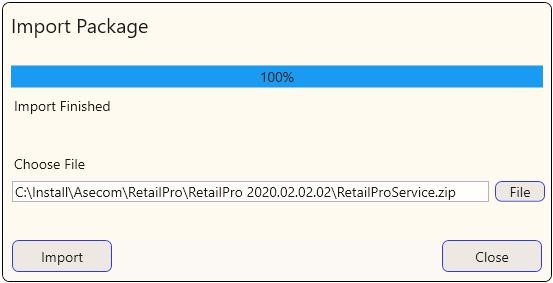
|
|
|
3 |
Click on “Close". |
|
Installing Helpers
|
Step |
Remarks |
|
|---|---|---|
|
1 |
Make sure the installation of B1 ProSuite Software Platform is completed and is running correctly. |
|
|
2 |
Start the B1 ProSuite Software Platform application if it has not yet started and login if needed. |
|
|
3 |
Navigate to Packages > Helpers. |
|
|
4 |
Click (in lower right corner) on “New”. Select packet “Print Function” and click “Add”. |
|
|
5 |
Make sure the status of each installed helper is displaying “Running”. 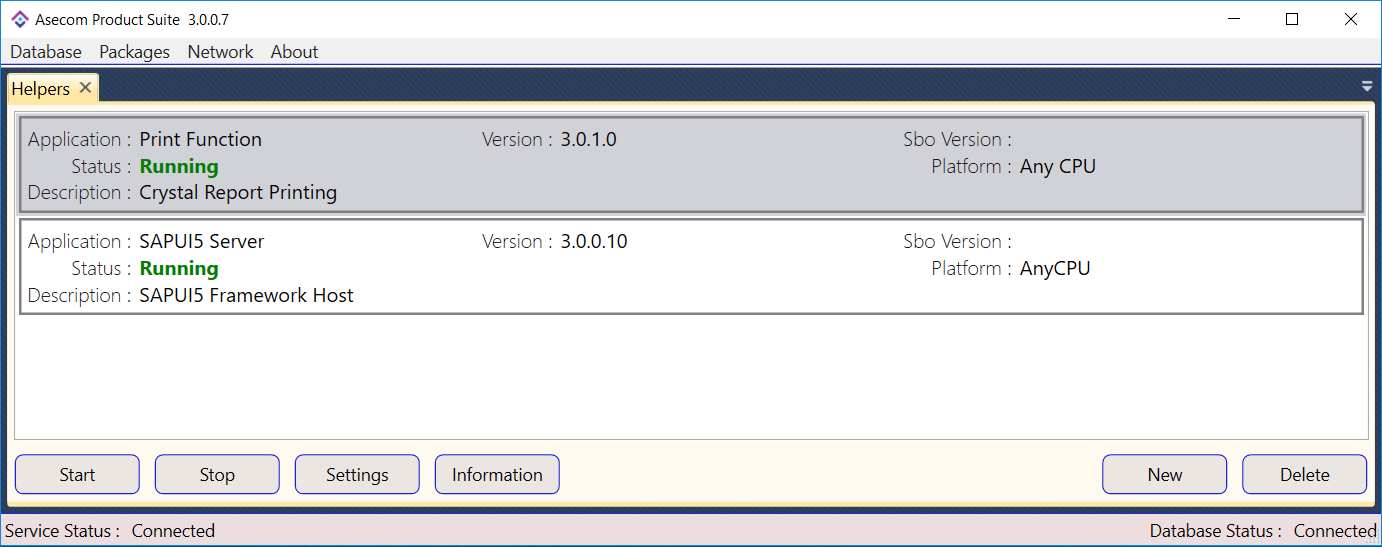
|
|
After successful new installation, please continue with Installing new RetailPro Server Instance.