Register Payments
Once all items have been confirmed and reject reasons are entered, the payment can be specified.
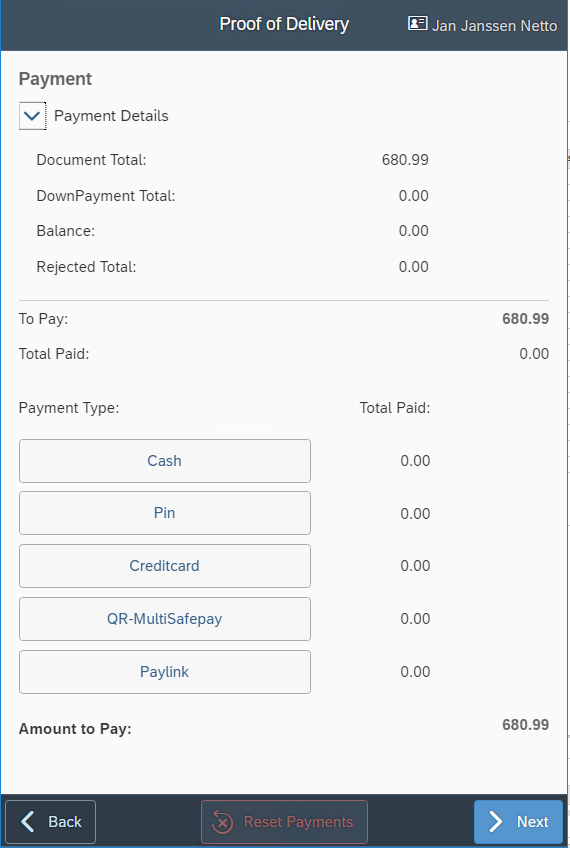
The window displays a summary of the amount to be paid. Press on the triangle in order to get the specification.
-
Document Total The original total amount of the documents for the address/stop.
This is the sum of Delivery and Return Requests.
-
Down Payment Total The amount to be settled that was already payed in advance for the Delivery documents for the address/stop.
In case the total amount paid in advance on a specific sales order exceeds total value of deliverd items, the remaining down payment will be reserved to settle for subsequent deliveries.
-
Balance The amount of additional Open balance of the customer.
-
Rejected Total The total amount of rejected items which will not remain at the customer.
-
To Pay The calculated amount to pay based on the amounts above.
-
Total Paid The total amount of payments registered by Proof of Delivery App.
Select the Payment Type from the list, enter the Amount to Pay and click the Next button when all payments are registered.
Multiple payments of the same or different Payment Types can be added.
When Payment Type Paylink has been selected, this option needs to be confirmed.
When the Total Paid value deviated from the To Pay value, a new screen follows:
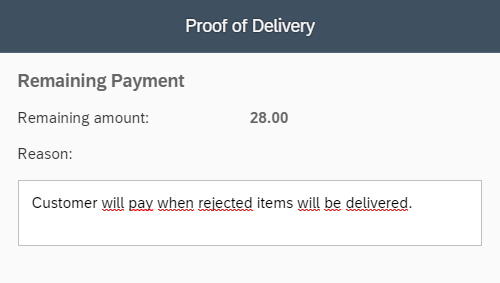
Here you must specify the reason for deviating from the amount that the customer was supposed to pay.
Click the Confirm button to save the data.
Payments via MultiSafePay
In order to process online payments, an integration with Payment Service Provider MultiSafepay allows to create payments via QR-code scanning.
Configuration steps
-
Set up API URL
-
Configure website Settings
-
Setup API key
-
Order description
-
Notification, redirect and cancel URL
-
Manually Approve Payment Allowed
Tip
It is advised to set up a test environment before using this functionality in production environment
Open the ProofOfDelivery App in the B1 ProSuite Software Platform. Go to Proof of Delivery Monitor > Config > Payment Methods > QR (MultiSafepay) Settings.
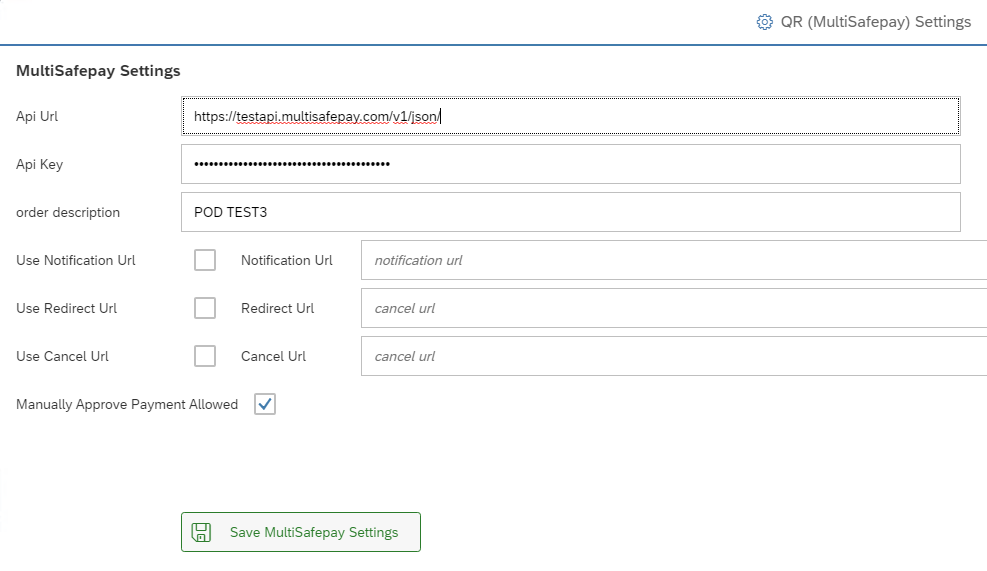
Fill in API URL: https://api.multisafepay.com/v1/json/
Create an account at MultiSafepay https://merchant.multisafepay.com/ and configure website settings as instructed in the MultiSafepay documentation.
Fill in the generated API Key as mentioned in the Website settings tab on the MultiSafepay website.
For test environment, use the word test after the Hypertext Transfer Protocol: https ://test
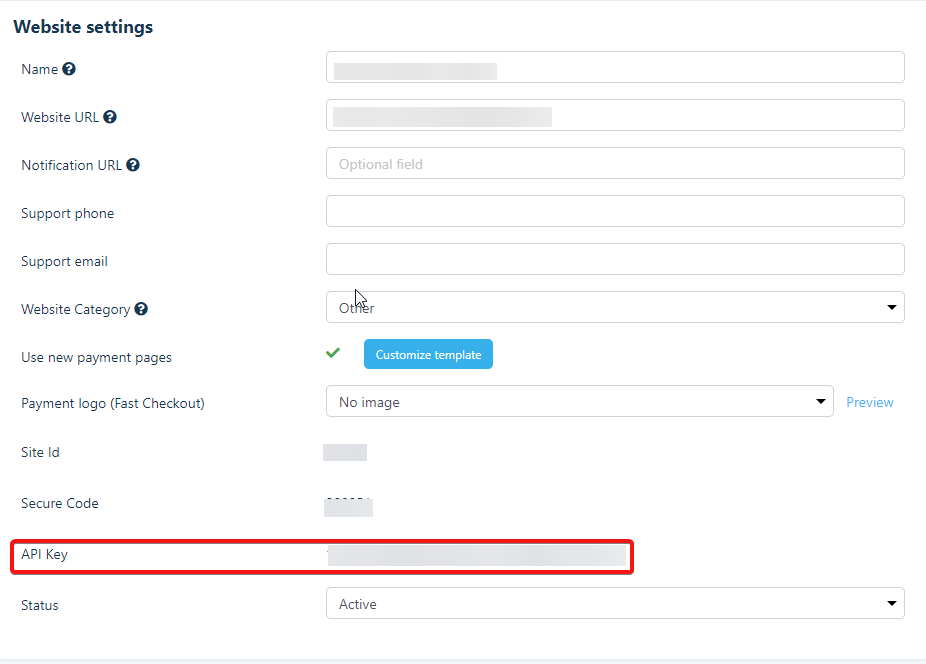
B1ProSuite is not responsible for changes in URL's. In that case, please contact MultiSafepay.
Order description becomes visible in MultiSafepay in order to distinguish transactions from other (payment) processes.
Notification, redirect and cancel URL Optional. These are landing pages to which the customer will be directed after payment (or cancellation).
Manually Approve Payment Allowed offers the driver a manual approval button on delivery when the payment cannot be verified due to a technical failure, but the customer does have a successful payment on the screen.
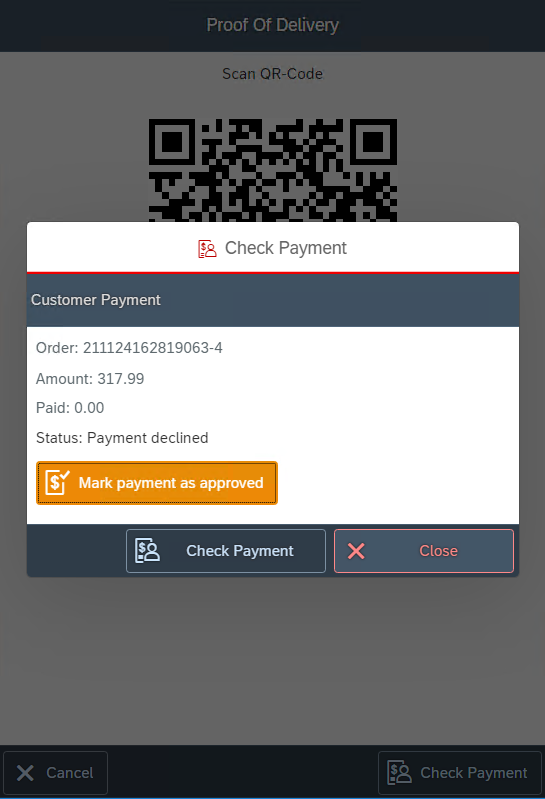
Once configured and selected as Payment Type in the Payment screen, a Scan QR-code window will be opened as follow:
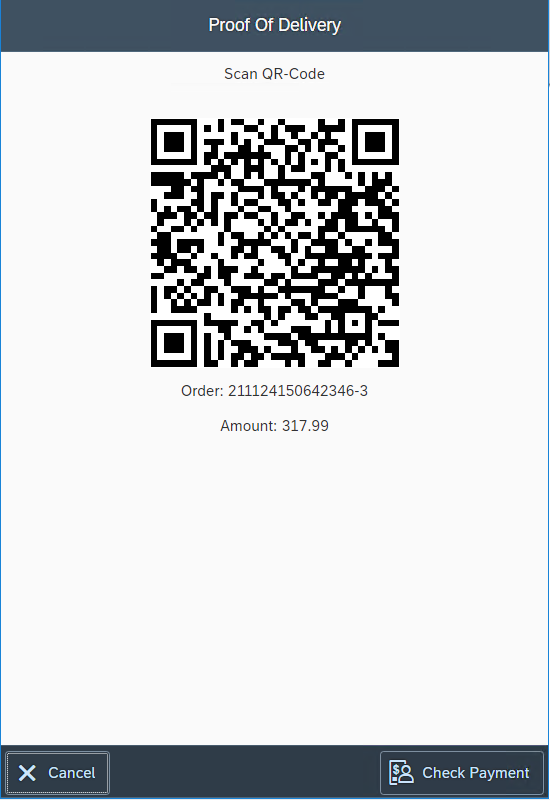
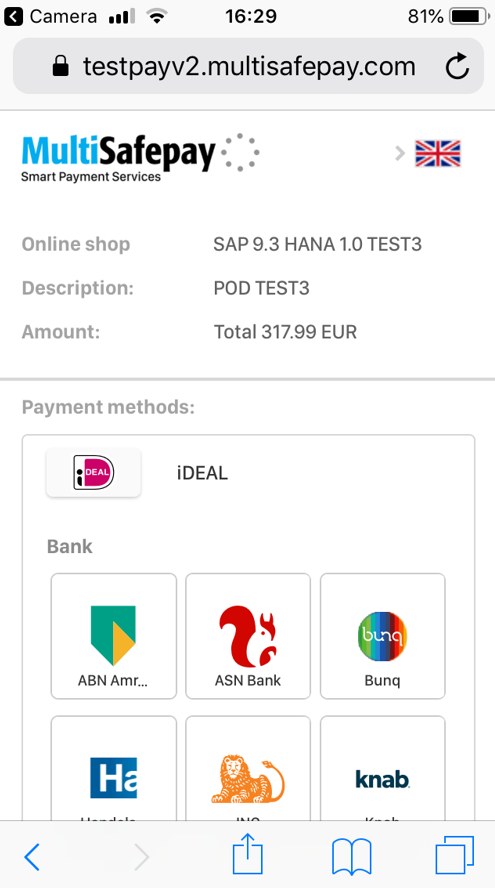
After scanning the QR-code, in next screen the payment method (for example IDeal) can be chosen. This will lead to the site of the bank in order to full-fill the payment.
Once the transaction has been completed, the payment status can be checked when pressing the Check Payment button (right below).
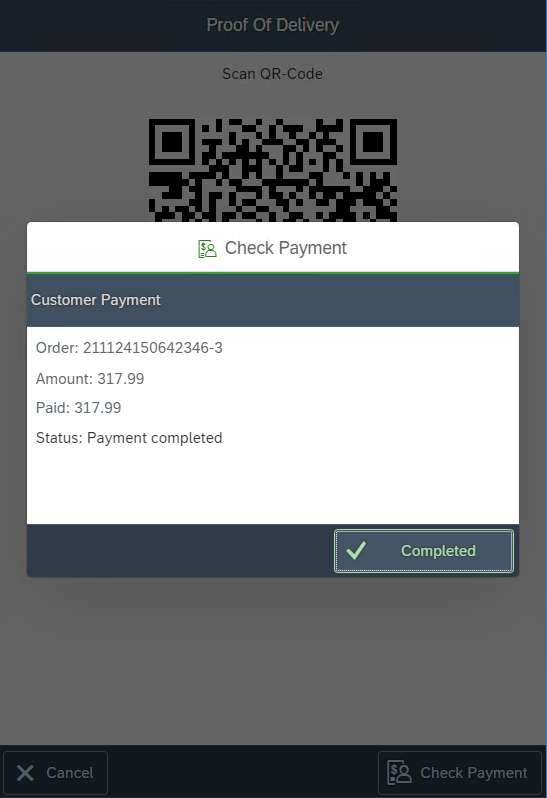
If for some technical reason the payment cannot be verified, but the customer can show a payment complete, the user can manually mark the payment as Approved. User should contact back-office to verify payment in MultiSafepay interface.