
A valid license is required for the installation of RetailPro. Ensure that it is correctly linked in the B1 ProSuite Software Platform before the installation of RetailPro is started.
|
Steps |
Remarks |
|
|---|---|---|
|
1 |
Start the B1ProSuite Software Platform application if it has not yet started and login if needed. |
|
|
2 |
Navigate to Packages > Applications . |
|
|
3 |
Click (in lower right corner) on “New”. 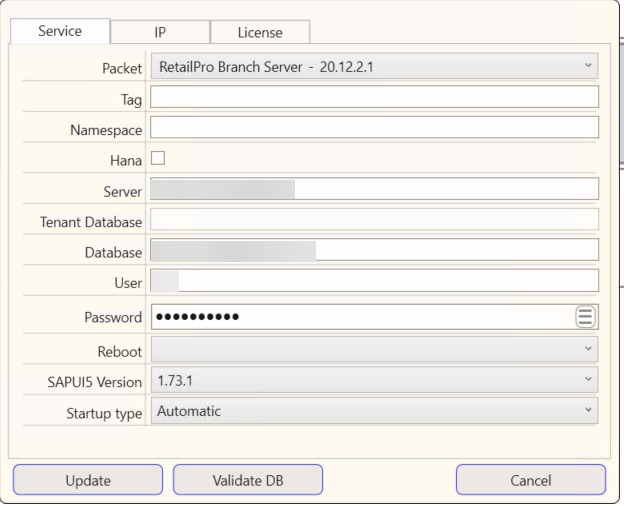
|
|
|
4 |
In Service tab, select packet “RetailPro Branch – xx.xx.x.x”. |
|
|
5 |
Enter a desired "Tag" to categorize the different applications (for example TEST or PRODUCTION). |
|
|
6 |
"Namespace" can be left empty. This will not be used. |
Will be implemented in a future release |
|
7 |
Enter the database server address behind "Server". |
|
|
8 |
Enter the name of the RetailPro Branchserver database to which the service should be linked in "Database" field. |
For new installation of branch server, the database name can be determined. Make sure to use a unique name to easily identify the database when needed. Please make sure to NOT use the SAP Business One database. This will cause to break the SAP Business One database. |
|
9 |
Enter the Database server login data in "User" and "Password" fields (not SAP Business One credentials). |
|
|
10 |
If desired, select a time when the Application should be restarted automatically. If this is set up, make sure that this is outside of business hours. |
|
|
11 |
Select a specific "SAPUI5 Version" from the range described in the Compatibility Matrix. |
If left blank, the highest available version is used. |
|
12 |
Select the “Startup type” to indicate whether the application should be started automatically when the B1 ProSuite Software Platform service is started. |
|
|
13 |
In IP tab, select which IP port this "service" should use. 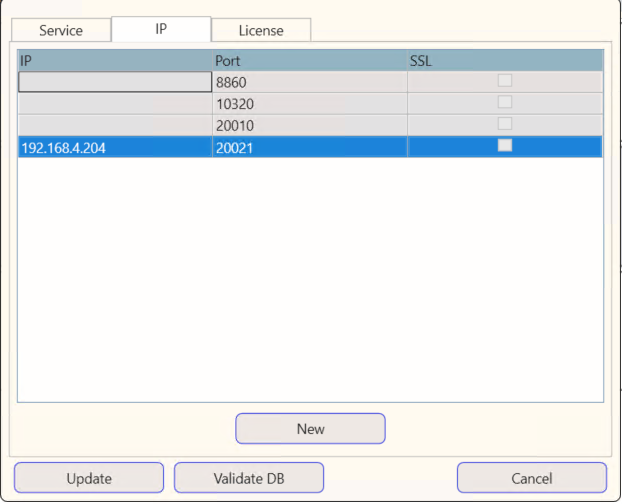
|
Make sure to create firewall rules to accept incoming traffic to access this port and the configured webserver port. |
|
14 |
In License tab. Assign an available license. |
Refer to the B1ProSuite Software Platform Installation Manual for instructions on obtaining (temporary) licenses. |
|
15 |
Click “Add” to start installation process. |
|
After succesfully installing a new RetailPro Branch Server instance, please continue to Setup RetailPro Branch Server.