
-
Magento consists largely of pages and blocks.
-
Pages are placed at specific locations and are accessible under a URL.
-
Blocks are building blocks that you can reuse in different places within Magento (e.g., on a page or in a category).
-
You can manage your content in pages and catalog descriptions using the Page Builder. To do this, you use our page templates or block templates.
-
These templates are pre-designed blueprints that allow you to manage content easily while maintaining proper display.
Step 1.1: Creating a Page or Block
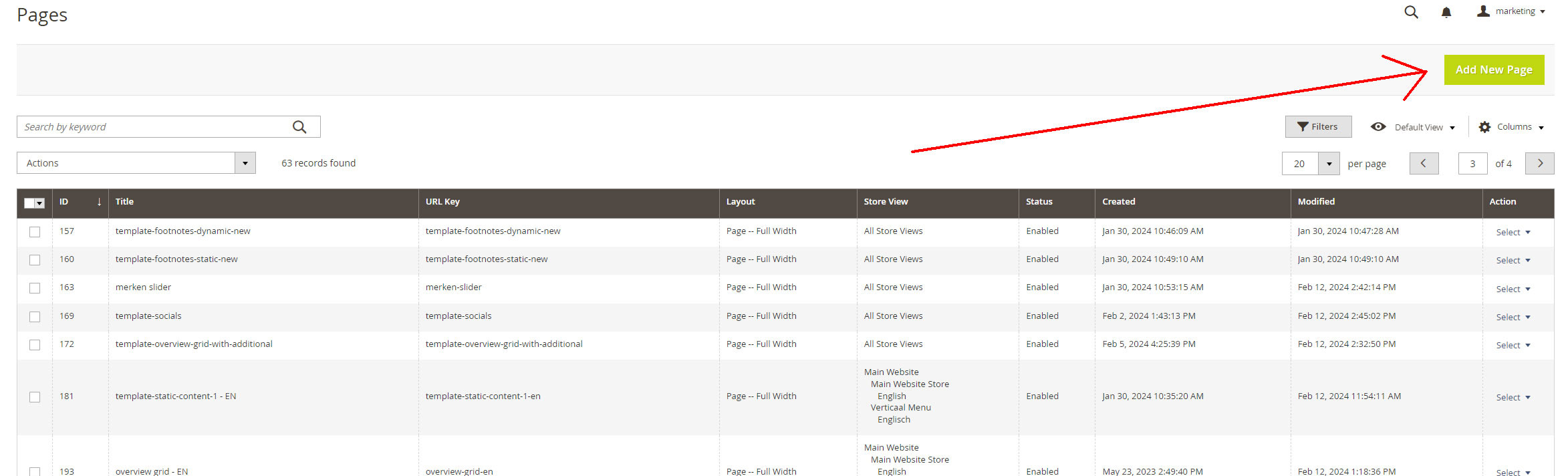
In the Magento backend of your webshop, navigate via the menu on the left to the following section:
-
Go to:
-
For pages: CONTENT > Elements > Pages
-
For blocks: CONTENT > Elements > Blocks
-
-
Add New Page
Select Add New Block/Add New Page.
Step 1.2: Basic Settings
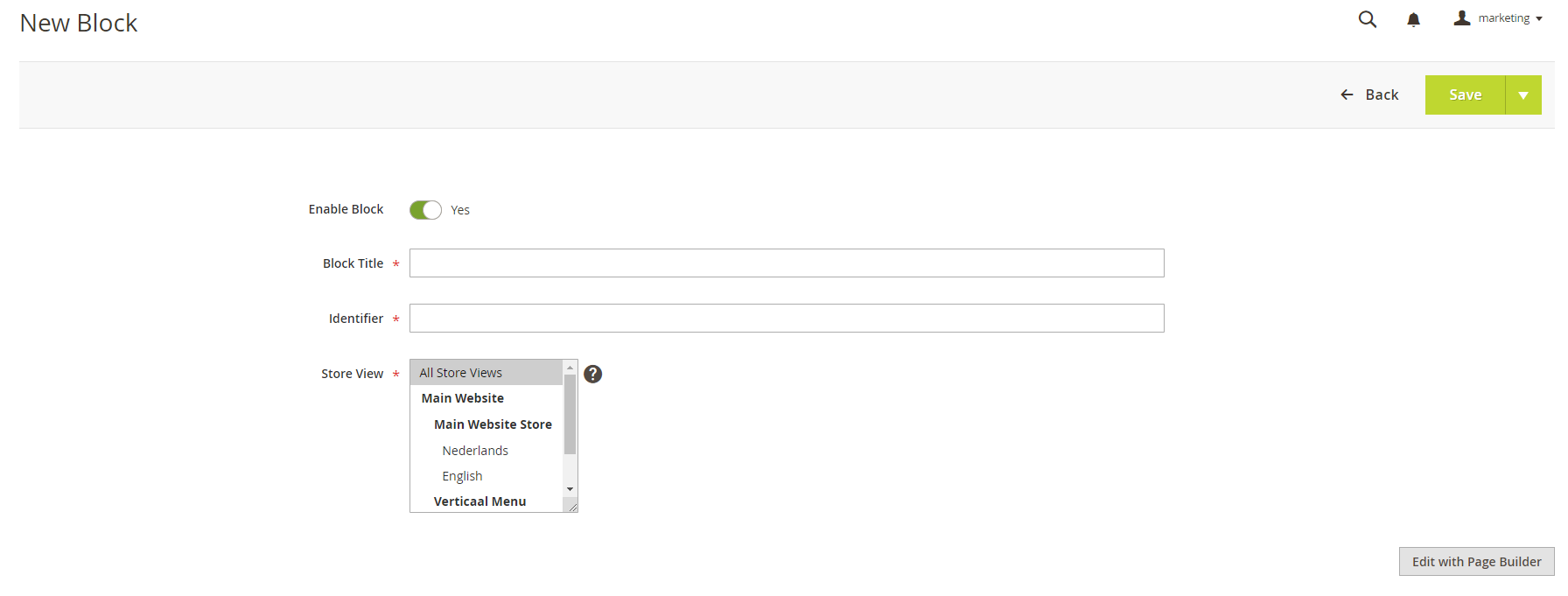
Set the minimal basic configurations before managing the content.
For a Block:
-
Enable block: Activate/make block visible
-
Block Title: A title
-
Identifier: A unique value for this block (recommendation: use an applicable title for future reference).
-
Store View: Specify which environment this block should appear in; default is All Store Views.
For a Page:
-
Enable page: Activate/make page visible
-
Page Title: Title of the page
Step 1.3: Applying a Template to the Created Page or Block
-
Open Content Management/Page Builder:
-
For a page: Content > Edit with Page Builder
-
For a block: Edit with Page Builder
-
-
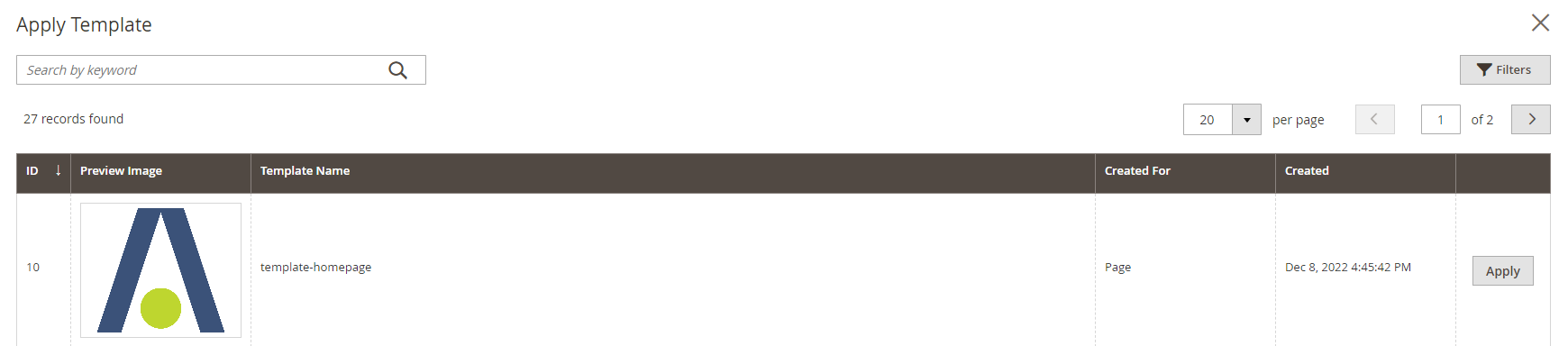
Apply Template:
In the top-right corner of the screen, select “Apply Template.”
A list of available templates will appear. Choose a page template for a page or a block template for a block. -
Save the page/block:
Save the selected template in your page or block. You can now proceed to edit it (see Step 2). Close the screen in the top-right corner and click the “Save” button again.